
You can run n8n on your own Ubuntu VPS and use it through a domain you control. This guide brings together Docker Compose, PostgreSQL, Caddy and an external task runner. You will send an authenticated request over HTTPS, check that the workflow executes, and verify that its data survives container replacement and restoration from a backup.
This setup suits users who want to manage their server and updates. The n8n Community edition can support your internal workflows; the server, domain and any external services have separate costs. Providing n8n access as a service to customers requires a separate look at the licence terms.
Test environment and scope
This installation was run on Ubuntu on 31 October 2026. The small sample workflow accepts an authenticated POST request, adds one to 41 in the Code node and returns JSON.
| Item | Value used in the test |
|---|---|
| Operating system | Ubuntu 24.04.5 LTS, amd64 |
| Server | 1 vCPU, approximately 1967 MiB RAM, 4 GiB swap |
| Docker / Compose | 29.9.2 / 5.6.1 |
| Images used | n8n and runners 2.45.7, PostgreSQL 17.11, Caddy 2.11.7; pinned by version and digest, with the pulled digests checked. |
| External access | TLS 1.3 with a trusted Let’s Encrypt certificate; the initial IP restriction returned HTTP 403 for a disallowed address. Ports 5432, 5678, 5679 and 5680 were unreachable externally. |
| Function and persistence | The native three-node workflow, production webhook 403/403/200 checks, the same results after replacing n8n and runner containers, and credential recovery in a separate project with fresh volumes were verified. |
The external runner used a separate container with UID 1000 and a read-only root filesystem. On the restored copy, external mode and a JavaScript runner process matching the successful Code check were confirmed from configuration and logs.
Login and webhook checks on the original installation used verified HTTPS. The restored copy published no host port: its webhook and login request with the saved owner account were tested over HTTP inside the container. That second check does not validate a new public HTTPS endpoint. Python, additional community nodes and heavy parallel load were outside this test.
The examples use n8n.example.com, the administrator IP 203.0.113.10/32, and the project directory /opt/n8n. Replace the domain and IP with your own values. A RAM figure alone does not establish workflow or concurrent-user capacity: large files, execution overlap and the data each workflow processes all matter.
This guide covers n8n’s core workflows and the external runner used by the Code node. Assistant may appear in the application; this setup does not configure its model connection or sandbox.
What you need before starting
- An Ubuntu server with SSH and
sudoaccess. For the initial connection, see connecting to a remote server over SSH. - Docker Engine and the Compose plugin. If needed, first complete our Docker installation and application deployment guide.
- A subdomain pointing to the server’s public IP. Check its A record and make sure any AAAA record points to the correct IPv6 address.
- 80/TCP and 443/TCP reaching the server. 443/UDP supports Caddy’s HTTP/3 connections. Check both the provider firewall and the server’s rules.
- The public IP of the computer you will use to create the initial owner account. Initial setup will be restricted to this address.
docker --version
docker compose version
sudo ss -ltnup
If ss shows another service using 80 or 443, resolve the port ownership before continuing. Stopping an existing Plesk, Apache or Nginx web service can interrupt other sites. This guide assumes an application server where Caddy can own those ports; adding n8n behind a panel-managed reverse proxy requires a different configuration.
What each service does
| Service | Purpose | Storage and access |
|---|---|---|
| Caddy | HTTPS, certificate renewal and forwarding requests to n8n | Only 80/443 are published; certificate material persists in a volume. |
| n8n | Editor, webhooks and workflow management | 5678 stays within container networks; its .n8n directory persists. |
| PostgreSQL | Database for workflows, users and stored credentials | 5432 is not published; n8n connects with a separate database role. |
| Task runner | Running Code-node scripts in a separate container | Authenticates to the n8n broker on 5679; receives neither the database password nor the n8n encryption key. |
The external runner follows n8n’s recommended arrangement for executing code. Webhook and Edit Fields nodes do not themselves submit Code-runner tasks, but this installation includes the runner so that Code remains usable. n8n and its runner must have matching application versions; their image digests are different because they are different images. The official task-runner guide explains the components.
Prepare the project directory and secrets
Create the files with the steps below or download the Compose configuration bundle. It contains no real passwords: prepare your own domain, administrator IP and secrets. You can also use the sample webhook workflow JSON; create its Header Auth credential in your own n8n instance.
The following steps create a new installation under /opt/n8n. If you already use that directory, preserve the existing files rather than overwriting them. From this point the commands run in a root shell, with a private directory and file permissions.
sudo -i
install -d -m 700 /opt/n8n
cd /opt/n8n
umask 077
Create .env. Set N8N_HOST to your domain and BOOTSTRAP_ALLOWED_IP to your actual public IP. Leaving the example IP in place will prevent you from reaching initial setup.
cat > .env <<'ENV'
COMPOSE_PROJECT_NAME=n8n
N8N_HOST=n8n.example.com
BOOTSTRAP_ALLOWED_IP=203.0.113.10/32
GENERIC_TIMEZONE=Europe/Istanbul

POSTGRES_ADMIN_PASSWORD=REPLACE_WITH_SEPARATE_RANDOM_64_HEX_CHARACTERS
N8N_DB_PASSWORD=REPLACE_WITH_SEPARATE_RANDOM_64_HEX_CHARACTERS
N8N_ENCRYPTION_KEY=REPLACE_WITH_SEPARATE_RANDOM_64_HEX_CHARACTERS_AND_KEEP_FOR_RESTORE
N8N_RUNNERS_AUTH_TOKEN=REPLACE_WITH_SEPARATE_RANDOM_64_HEX_CHARACTERS

N8N_IMAGE=docker.io/n8nio/n8n:2.45.7@sha256:9a8d8dcea75667496695d7810d7e1fe018a65efb36cc499d347f3931b3957b5d
RUNNERS_IMAGE=docker.io/n8nio/runners:2.45.7@sha256:2f07088829b6a1df2b6a84746bb8b32c1eaef270315fb5466aa01b1045e9b300
POSTGRES_IMAGE=docker.io/library/postgres:17.11-bookworm@sha256:839fbb5a4942a7758dd93e18b42ea5649807491a0545b5eeeb8f0b8bb11857a5
CADDY_IMAGE=docker.io/library/caddy:2.11.7-alpine@sha256:e70b164da81ef698b3ad19af799ea6086ce6d9e48ed4079eb9fe26f6fbf14ee5
ENV
Generate four independent random secrets. This command replaces only values beginning with REPLACE_WITH_ and does not print the resulting secrets. It leaves an already generated encryption key intact.
python3 - <<'PY'
from pathlib import Path
from secrets import token_hex
import re

path = Path(".env")
text = path.read_text()
keys = (
    "POSTGRES_ADMIN_PASSWORD",
    "N8N_DB_PASSWORD",
    "N8N_ENCRYPTION_KEY",
    "N8N_RUNNERS_AUTH_TOKEN",
)
for key in keys:
    text = re.sub(
        rf"^{key}=REPLACE_WITH_[^\n]*$",
        lambda match: f"{key}={token_hex(32)}",
        text,
        flags=re.MULTILINE,
    )
if "REPLACE_WITH_" in text:
    raise SystemExit("Unreplaced placeholder in .env")
path.write_text(text)
path.chmod(0o600)
PY
N8N_ENCRYPTION_KEY is required to decrypt stored n8n credentials. Preserve it alongside the database backup. Reinstalling the server does not make an existing database usable with a different key. Keep the real .env out of Git repositories, support messages and screenshots.
Configure Docker Compose and PostgreSQL
The following file defines services, health checks and persistent volumes. Images are pinned by version and digest so replacing a container does not silently select a different image. Updates remain an explicit maintenance step.
cat > compose.yml <<'YAML'
services:
  postgres:
    image: ${POSTGRES_IMAGE:?Set POSTGRES_IMAGE in .env}
    restart: unless-stopped
    environment:
      POSTGRES_USER: postgres
      POSTGRES_DB: n8n
      POSTGRES_PASSWORD: ${POSTGRES_ADMIN_PASSWORD:?Generate POSTGRES_ADMIN_PASSWORD}
      N8N_DB_PASSWORD: ${N8N_DB_PASSWORD:?Generate N8N_DB_PASSWORD}
    volumes:
      - postgres_data:/var/lib/postgresql/data
      - ./initdb.sh:/docker-entrypoint-initdb.d/10-n8n.sh:ro
    networks:
      - database
    healthcheck:
      test: ["CMD", "pg_isready", "-h", "127.0.0.1", "-U", "postgres", "-d", "n8n"]
      interval: 10s
      timeout: 5s
      retries: 12
      start_period: 30s
    logging:
      driver: json-file
      options:
        max-size: "10m"
        max-file: "3"

  n8n:
    image: ${N8N_IMAGE:?Set N8N_IMAGE in .env}
    restart: unless-stopped
    depends_on:
      postgres:
        condition: service_healthy
    environment:
      DB_TYPE: postgresdb
      DB_POSTGRESDB_HOST: postgres
      DB_POSTGRESDB_PORT: "5432"
      DB_POSTGRESDB_DATABASE: n8n
      DB_POSTGRESDB_USER: n8n_app
      DB_POSTGRESDB_PASSWORD: ${N8N_DB_PASSWORD:?Generate N8N_DB_PASSWORD}
      N8N_ENCRYPTION_KEY: ${N8N_ENCRYPTION_KEY:?Generate and preserve N8N_ENCRYPTION_KEY}
      N8N_HOST: ${N8N_HOST:?Set the DNS hostname}
      N8N_PORT: "5678"
      N8N_LISTEN_ADDRESS: "0.0.0.0"
      N8N_PROTOCOL: https
      N8N_EDITOR_BASE_URL: https://${N8N_HOST:?Set the DNS hostname}/
      N8N_WEBHOOK_URL: https://${N8N_HOST:?Set the DNS hostname}/
      N8N_PROXY_HOPS: "1"
      GENERIC_TIMEZONE: ${GENERIC_TIMEZONE:-Europe/Istanbul}
      TZ: ${GENERIC_TIMEZONE:-Europe/Istanbul}
      N8N_ENFORCE_SETTINGS_FILE_PERMISSIONS: "true"
      N8N_BLOCK_ENV_ACCESS_IN_NODE: "true"
      N8N_AI_ENABLED: "false"
      N8N_RUNNERS_MODE: external
      N8N_RUNNERS_BROKER_LISTEN_ADDRESS: "0.0.0.0"
      N8N_RUNNERS_AUTH_TOKEN: ${N8N_RUNNERS_AUTH_TOKEN:?Generate N8N_RUNNERS_AUTH_TOKEN}
      EXECUTIONS_DATA_PRUNE: "true"
      EXECUTIONS_DATA_MAX_AGE: "168"
    volumes:
      - n8n_data:/home/node/.n8n
    networks:
      - edge
      - database
      - runner
    healthcheck:
      test:
        - CMD
        - node
        - -e
        - "fetch('http://127.0.0.1:5678/healthz/readiness', {signal: AbortSignal.timeout(4000)}).then(r => process.exit(r.ok ? 0 : 1)).catch(() => process.exit(1))"
      interval: 15s
      timeout: 5s
      retries: 12
      start_period: 120s
    stop_grace_period: 60s
    logging:
      driver: json-file
      options:
        max-size: "10m"
        max-file: "3"

  task-runners:
    image: ${RUNNERS_IMAGE:?Set the runner image matching the n8n version}
    restart: unless-stopped
    depends_on:
      n8n:
        condition: service_healthy
    environment:
      N8N_RUNNERS_TASK_BROKER_URI: http://n8n:5679
      N8N_RUNNERS_AUTH_TOKEN: ${N8N_RUNNERS_AUTH_TOKEN:?Generate N8N_RUNNERS_AUTH_TOKEN}
      N8N_RUNNERS_AUTO_SHUTDOWN_TIMEOUT: "15"
      GENERIC_TIMEZONE: ${GENERIC_TIMEZONE:-Europe/Istanbul}
    read_only: true
    tmpfs:
      - /tmp:rw,noexec,nosuid,size=64m
    cap_drop:
      - ALL
    security_opt:
      - no-new-privileges:true
    networks:
      - runner
    logging:
      driver: json-file
      options:
        max-size: "10m"
        max-file: "3"

  caddy:
    image: ${CADDY_IMAGE:?Set CADDY_IMAGE in .env}
    restart: unless-stopped
    depends_on:
      n8n:
        condition: service_healthy
    environment:
      N8N_HOST: ${N8N_HOST:?Set the DNS hostname}
      BOOTSTRAP_ALLOWED_IP: ${BOOTSTRAP_ALLOWED_IP:?Set the initial operator public IP}
    ports:
      - "80:80"
      - "443:443"
      - "443:443/udp"
    volumes:
      - ./Caddyfile:/etc/caddy/Caddyfile:ro
      - caddy_data:/data
      - caddy_config:/config
    networks:
      - edge
    logging:
      driver: json-file
      options:
        max-size: "10m"
        max-file: "3"

volumes:
  postgres_data:
  n8n_data:
  caddy_data:
  caddy_config:

networks:
  edge:
  database:
    internal: true
  runner:
    internal: true
YAML
n8n does not need a PostgreSQL superuser account. On the database’s first startup, create n8n_app as the owner of its own database:
cat > initdb.sh <<'SH'
#!/bin/sh
set -eu

# Runs only when postgres_data is first initialized. Identifiers are fixed;
# psql safely quotes the application password as a SQL literal.
: "${N8N_DB_PASSWORD:?N8N_DB_PASSWORD must be set}"
psql --username "$POSTGRES_USER" --dbname "$POSTGRES_DB" \
  --set=ON_ERROR_STOP=1 --set=n8n_password="$N8N_DB_PASSWORD" <<'SQL'
CREATE ROLE n8n_app WITH LOGIN PASSWORD :'n8n_password' NOSUPERUSER NOCREATEDB NOCREATEROLE;
ALTER DATABASE n8n OWNER TO n8n_app;
GRANT ALL ON SCHEMA public TO n8n_app;
SQL
SH
chmod 644 initdb.sh
This initialization script runs only when the PostgreSQL volume is empty. Editing a password in .env later does not automatically change an existing PostgreSQL role’s password; apply a password change to both PostgreSQL and n8n together.
None of the three application ports is published on the host, so the editor, broker and database do not gain a direct internet entry point. The runner belongs only to its private network, while n8n retains outbound access for normal service connections. The database’s protection therefore does not depend on assuming that a host firewall blocks Docker-published ports.
Enable HTTPS and protect initial owner setup
Save the normal Caddy configuration as Caddyfile.final. Caddy obtains and renews a certificate for the hostname and redirects HTTP to HTTPS. Its persistent /data volume also holds certificate keys. The automatic HTTPS requirements include correct DNS and the relevant ports reaching Caddy.
cat > Caddyfile.final <<'CADDY'
{$N8N_HOST} {
    reverse_proxy n8n:5678
}
CADDY
For the first start, use the following active configuration instead. It restricts the initial n8n owner-account screen to your IP while Caddy continues to handle certificate validation. Point the hostname directly at the server without an unconfigured CDN or proxy in front of it: this matcher uses the connecting client’s address.
cat > Caddyfile <<'CADDY'
{$N8N_HOST} {
    @notOperator not remote_ip {$BOOTSTRAP_ALLOWED_IP}
    respond @notOperator "Initial setup is restricted." 403
    reverse_proxy n8n:5678
}
CADDY
Validate the configuration, pull the images and start the services. A fully expanded docker compose config can expose passwords, so use --quiet here.
docker compose config --quiet
docker compose pull
docker compose run --rm --no-deps caddy caddy validate --config /etc/caddy/Caddyfile --adapter caddyfile
docker compose up -d
docker compose ps
On first startup, PostgreSQL initializes and n8n applies database migrations. Check docker compose ps for healthy PostgreSQL and n8n services and a running task runner. To inspect versions and recent application messages:
docker compose exec n8n n8n --version
docker compose exec postgres psql -U postgres -d n8n -c 'SELECT version();'
docker compose exec caddy caddy version
docker compose logs --tail=60 n8n task-runners
Open https://n8n.example.com from the allowed connection. A request from a different network should receive 403 at this stage. On Set up owner account, enter your email, name and a strong password, then select Next. On Customize n8n to you, you can leave the optional questions unanswered and select Get started. If the free licence-key offer appears, choose Skip to continue with this setup.
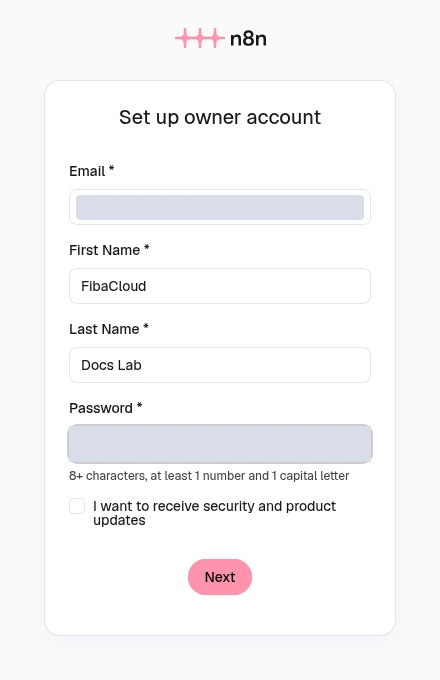
If the first screen is Assistant Preview, choose Turn off for this instance and confirm the Turn off n8n Assistant dialog to continue to the workflow editor used in this guide. Then open the same domain in a private browser window and confirm that you can use Sign in with the email and password you just created. Once owner setup and login are confirmed, switch to the normal proxy configuration:
cp Caddyfile.final Caddyfile
docker compose exec caddy caddy reload --config /etc/caddy/Caddyfile --adapter caddyfile
cp updates the existing file’s contents and preserves the file Caddy sees through its bind mount. If you use an atomic rename instead, recreate the Caddy container so it does not retain the old file. The public site should now show n8n’s login screen rather than an unclaimed owner-setup screen.
curl -I http://n8n.example.com/
curl -I https://n8n.example.com/
Run the HTTPS check without -k; disabling certificate verification does not establish valid TLS. Caddy handles the required X-Forwarded-* headers and WebSocket upgrades. For this single-proxy arrangement, N8N_PROXY_HOPS=1 and N8N_WEBHOOK_URL=https://your-domain/ match the request path. The old WEBHOOK_URL setting found in earlier examples is deprecated.
Run your first authenticated webhook
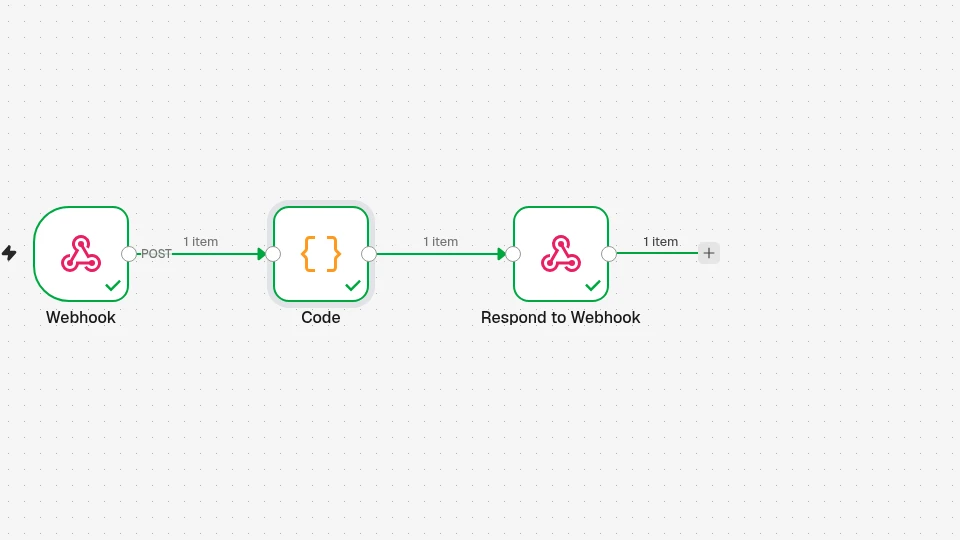
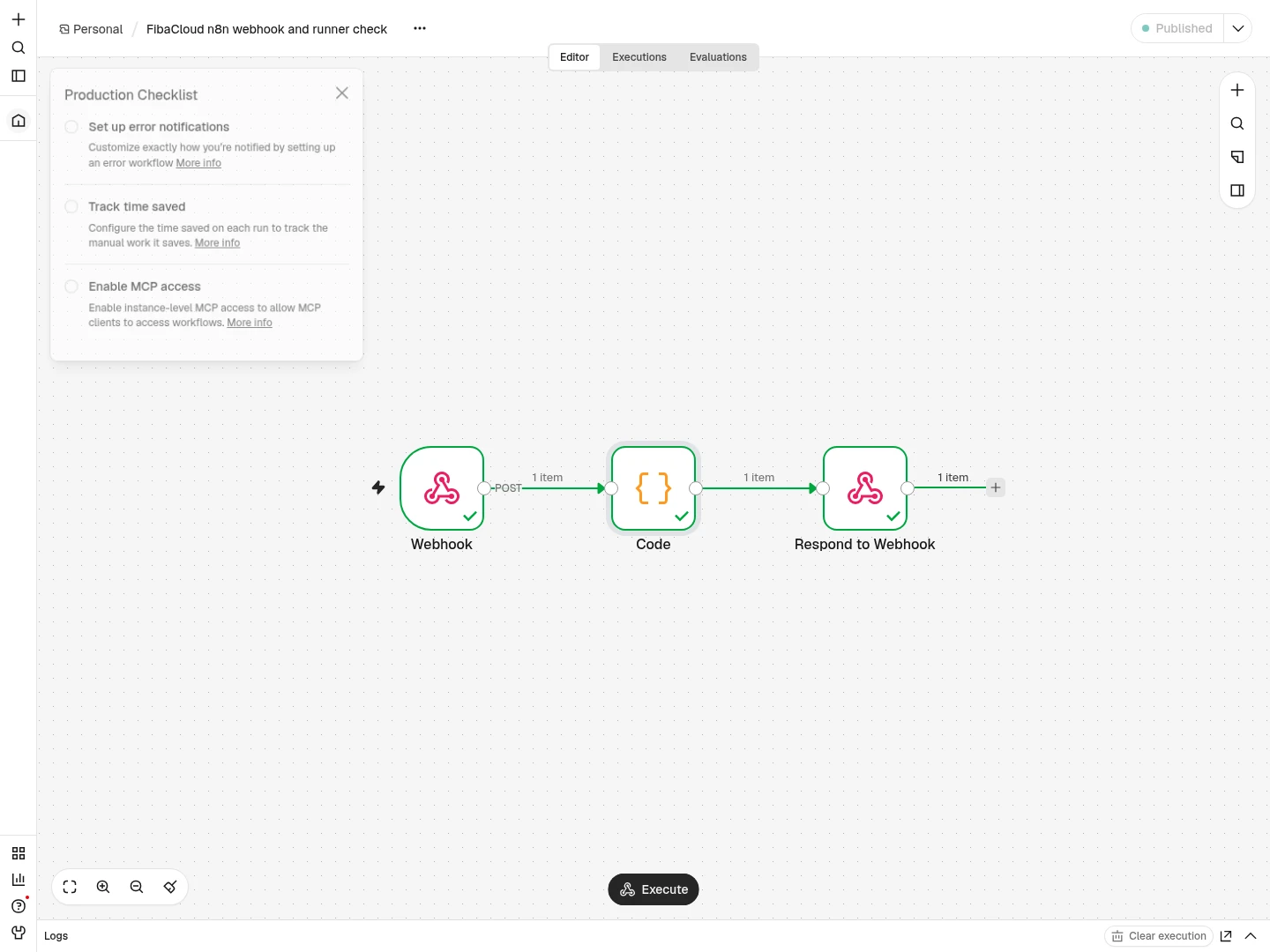
A working login page is only the start. Use three nodes to check HTTPS ingress, stored credentials, workflow execution and the external Code runner together: Webhook → Code → Respond to Webhook.
Create a separate key for webhook requests. The command refuses to overwrite an existing header file:
install -d -m 700 /opt/n8n/secrets
python3 - <<'PY'
from pathlib import Path
from secrets import token_hex

path = Path("/opt/n8n/secrets/webhook-header.txt")
with path.open("x") as output:
    output.write("Authorization: Bearer " + token_hex(32) + "\n")
path.chmod(0o600)
PY
To use the downloaded example JSON, choose Build a workflow in the workspace. Open the three-dot menu at the top and select Import → From file. If the Importing this from an AI tool? offer appears, select Skip; this example needs no MCP connection. When all three nodes appear, save with Ctrl+S.
Open the Webhook node in the editor, or add it if building from scratch. Set HTTP Method to POST, Path to fc-n8n-runner-check, and Authentication to Header Auth. Select Connect to Header Auth to create its credential. Use Name Authorization and the value beginning with Bearer from your private file, then select Save. Read it only in your own secure terminal and transfer it to the HTTPS interface; do not put it in shared logs or screenshots. Webhook execution data can show request headers and this value; do not assume it is automatically hidden.
Set the Webhook response option to Using Respond to Webhook Node. Add a Code node with JavaScript and Run Once for All Items, then enter:
const body = $input.first().json.body;
return [{
  json: {
    ok: true,
    received: String(body.message ?? ''),
    result: Number(body.value) + 1
  }
}];
For Respond to Webhook, choose First Incoming Item and HTTP 200; disable streaming for this simple JSON response. We deliberately return only selected fields, so request headers and the authentication value are not echoed back.
Copy the address from the Webhook’s Test URL tab, close the node panel and save the workflow. To test all three nodes, select Execute at the bottom of the canvas and wait for Waiting for you to call the Test URL. The node’s Listen for test event action tests only the Webhook: in this version, it returned HTTP 200 with an empty body and did not run Code or the response node. Send the following request while the full workflow is listening, adjusting its domain and path to the copied URL:
curl --fail-with-body --silent --show-error \
  --header @/opt/n8n/secrets/webhook-header.txt \
  --header 'Content-Type: application/json' \
  --data '{"value":41,"message":"fibacloud-lab"}' \
  'https://n8n.example.com/webhook-test/fc-n8n-runner-check'
The full workflow test returned this response, which you should also expect from your installation:
{"ok":true,"received":"fibacloud-lab","result":42}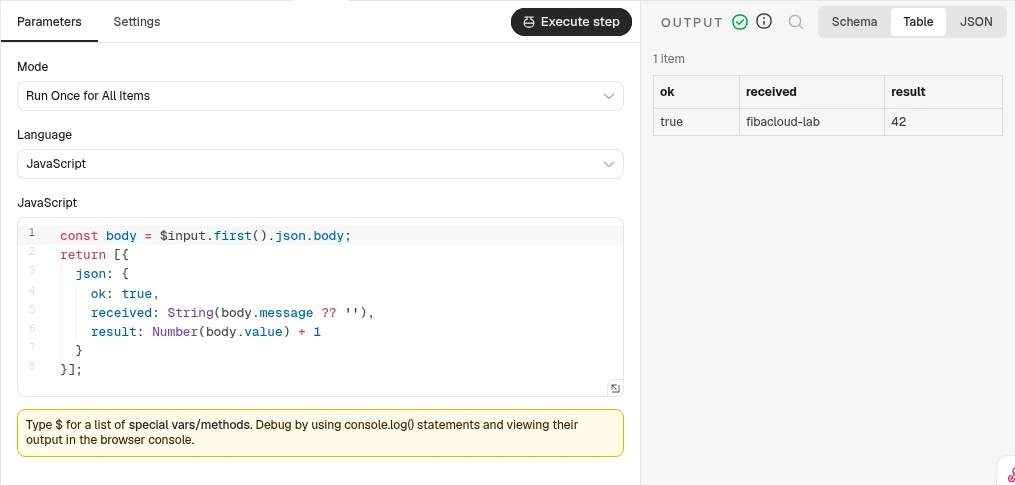
The Test URL works while its test listener is active. For a persistent webhook, select Publish at the top, enter a version name in Publish workflow, then select Publish again. Dismiss Workflow published with Got it; the toolbar should show Published. Copy the address from the Webhook’s Production URL tab. Production requests do not require the test listener.
curl --fail-with-body --silent --show-error \
  --header @/opt/n8n/secrets/webhook-header.txt \
  --header 'Content-Type: application/json' \
  --data '{"value":41,"message":"fibacloud-lab"}' \
  'https://n8n.example.com/webhook/fc-n8n-runner-check'
After the production request, open Executions and check that the new run shows Succeeded; production results do not automatically replace the editor’s earlier test output. Also send requests to the same production URL with no key and with an incorrect key:
curl --silent --show-error --output /dev/null --write-out '%{http_code}\n' \
  --header 'Content-Type: application/json' \
  --data '{"value":41,"message":"fibacloud-lab"}' \
  'https://n8n.example.com/webhook/fc-n8n-runner-check'

curl --silent --show-error --output /dev/null --write-out '%{http_code}\n' \
  --header 'Authorization: Bearer invalid-test-value' \
  --header 'Content-Type: application/json' \
  --data '{"value":41,"message":"fibacloud-lab"}' \
  'https://n8n.example.com/webhook/fc-n8n-runner-check'
Both requests were rejected with HTTP 403 in this lab. The correct key returned HTTP 200 and the JSON above. Check the successful JSON response and the rejection status codes together on your own installation. Being logged into the editor does not automatically authorize an external webhook request; Header Auth protects this endpoint separately. See the webhook credential documentation for supported methods.
When you only need to add or rename fields, use Edit Fields instead of Code. Mapping a received field to {{ $json.body.message }}, for example, does not require a custom script. We use Code here to check that the external runner actually executes a task.
Check persistence and resource use
After saving the workflow, recreate n8n and the runner without deleting volumes:
docker compose up -d --no-deps --force-recreate --wait --wait-timeout 240 n8n task-runners
docker compose ps
Log in again and repeat the production webhook request with the same key. The workflow, publication state and credential should still be available. Then observe memory both at rest and during the small sample execution:
free -h
docker stats --no-stream
docker compose ps
This is not a load test. Large JSON arrays, files, long-running Code nodes and parallel workflows use resources differently. If memory is insufficient, first inspect restarts, OOM events and workflow data sizes. One successful small execution is not a production capacity guarantee.
The following docker stats --no-stream values are one snapshot taken after the small sample workflow. At that point the host was using approximately 385 MiB of swap. These figures do not represent peak demand or establish production capacity for a 2 GB server.
| Service | RAM snapshot after the workflow |
|---|---|
| n8n | 443.6 MiB |
| Task runner | 90.16 MiB |
| PostgreSQL | 64.1 MiB |
| Caddy | 58.86 MiB |
Back up the instance and restore it separately
A recoverable n8n backup combines PostgreSQL, the n8n_data volume, the unchanged N8N_ENCRYPTION_KEY and deployment files. Preserving Caddy certificate data also avoids unnecessary certificate requests during recovery. Exporting workflow JSON alone does not preserve all users, credentials and instance settings.
Place maintenance.py from the downloadable bundle at /opt/n8n/maintenance.py; do not overwrite your existing .env with the example file. It runs in a root shell with Python 3 and Docker access. The backup destination must be a new directory; change its date or name for later backups.
The script stops Caddy, n8n and the runner, then takes a logical pg_dump backup while PostgreSQL stays running. It saves the n8n/Caddy volumes and four configuration files, records hashes for eight backup files in manifest.json, then attempts to restart the original services. It does not archive the live PostgreSQL data directory. The backup contains passwords, stored credentials and certificate keys; keep it private.
To avoid running two installations together on this small server, stop the original project again after the backup finishes. The interface and webhooks remain unavailable until the restoration check is complete, so allow a maintenance window.
cd /opt/n8n
python3 maintenance.py backup /root/n8n-backup-20261031
docker compose stop
The following restoration uses a new directory, a different project name and fresh volumes. The script verifies hashes and refuses to overwrite an existing destination, project data or volume. Stored credentials cannot be used if the encryption key is missing or does not match the database.
python3 maintenance.py restore \
  /root/n8n-backup-20261031 \
  /opt/n8n-restore \
  --project n8n-restore
The copy starts only PostgreSQL, n8n and the runner. Caddy stays stopped, no host port is published and all attached Compose networks remain internal. This does not create a new public HTTPS deployment. Network isolation does not disable timers; workflows can still change the copy’s own database. Use the following check only with this guide’s controlled webhook workflow.
Pass the original header file through standard input to check authentication from inside the copy. The command does not print the key or put it in process arguments. It expects rejection for missing/incorrect keys and HTTP 200 with result: 42 for the correct key:
cd /opt/n8n-restore
docker compose -f compose.yml -f restore.override.json exec -T n8n node -e '
const prefix = "Authorization: ";
const line = require("node:fs").readFileSync(0, "utf8").trim();
if (!line.startsWith(prefix)) throw new Error("Invalid header file");
const savedHeader = line.slice(prefix.length);
(async () => {
  for (const [name, key] of [
    ["missing", null],
    ["wrong", "Bearer invalid-test-value"],
    ["valid", savedHeader],
  ]) {
    const headers = { "Content-Type": "application/json" };
    if (key) headers.Authorization = key;
    const response = await fetch(
      "http://127.0.0.1:5678/webhook/fc-n8n-runner-check",
      {
        method: "POST",
        headers,
        body: JSON.stringify({ value: 41, message: "fibacloud-lab" }),
        signal: AbortSignal.timeout(90000),
      },
    );
    const body = await response.text();
    console.log(JSON.stringify({ case: name, status: response.status, body }));
    if (name === "valid") {
      const result = JSON.parse(body);
      if (response.status !== 200 || result.ok !== true ||
          result.received !== "fibacloud-lab" || result.result !== 42) {
        throw new Error("Restored webhook result did not match");
      }
    } else if (![401, 403].includes(response.status)) {
      throw new Error("Unauthenticated request was not rejected");
    }
  }
})().catch(error => {
  console.error(error.message);
  process.exitCode = 1;
});
' < /opt/n8n/secrets/webhook-header.txt
In the lab, the restored copy returned HTTP 403 for missing and incorrect keys, and HTTP 200 with the same JSON for the original key. A login request with the saved owner account also returned 200. The separate project, fresh volumes, absent host ports and internal networks were checked against actual Docker state. This demonstrated recovery of the database and encryption key together, beyond merely starting containers. Keep the private restore-receipt.json alongside the backup manifest.
When the check is complete, stop the copy and restart the original installation. Include both -f files for the copy so its restoration network and service settings remain applied. If the check fails, still bring the original project back and investigate without deleting its volumes:
cd /opt/n8n-restore
docker compose -f compose.yml -f restore.override.json stop

cd /opt/n8n
docker compose up -d --wait --wait-timeout 240
docker compose ps
Recheck login and the authenticated production webhook on the original HTTPS address. Keep another backup copy away from the server, encrypted and with restricted access. An archive on the same disk can help recover from a bad update; it cannot by itself cover complete server or disk loss.
Maintain n8n and the surrounding services
Complete the backup and restore check first. Read the n8n release notes, including migration instructions for a major-version change. Update both n8n and the runner references in .env to the same new application version, each with its own verified image digest.
docker compose pull
docker compose up -d
docker compose ps
Recheck HTTPS login and the authenticated webhook. docker compose restart alone does not apply a new image or changed environment. If an update ran database migrations, starting the old image is not necessarily a valid rollback; restore the pre-update backup with compatible images when required.
Track PostgreSQL maintenance releases within the selected major version. Do not treat PostgreSQL 17 to 18 as a routine image-tag edit: major upgrades need a data migration method. The PostgreSQL version policy explains support periods and the difference between minor and major updates. Include Caddy’s maintenance releases in the same plan.
This Compose example rotates Docker logs at 10 MB per file with three files, enables n8n execution-data pruning and sets its age threshold to 168 hours. Choose retention to fit your investigation and data requirements; saved execution data can contain customer information.
Common problems
| Symptom | First check |
|---|---|
| 403 during initial setup | Does BOOTSTRAP_ALLOWED_IP match your current connection? A VPN or network change can alter your public IP. |
| 502 Bad Gateway | Is n8n healthy, is its PostgreSQL connection established, and do Caddy and n8n share the edge network? |
| Certificate cannot be issued | Are A/AAAA records correct, do 80/443 reach Caddy, and is another service using either port? |
| Webhook returns 404 | Are you using the correct Test or Production URL? Is its test listener active or the workflow published? Is the method POST? |
| Authentication rejected | Is the header named Authorization, does its value include the Bearer prefix and space, and is the correct credential selected? |
| Code execution waits | Is the runner running with the matching n8n version? Do the broker URI and shared token match? |
| Data appears missing after restart | Are you using the same Compose project name and volumes? Running from another directory may create a different project. |
docker compose ps
docker compose logs --tail=80 n8n task-runners caddy
df -h
Review logs for request contents and secrets before sharing them. docker compose down -v deletes persistent volumes as well; it is not a routine restart command.
Frequently asked questions
Is self-hosted n8n free?
The Community edition is available under the Sustainable Use License. Internal use where people in your organization create workflows differs from allowing external customers to build or configure workflows or access n8n as a service. A commercial licence or external API fees may apply in addition to hosting. Compare your intended use with n8n’s current licence explanation.
How much RAM does n8n need?
Evaluate the services you install and the amount of data each workflow handles together. The measurement in this guide’s test box covers only its stated small workflow. Do not assume the same result for Assistant, local models, large files or heavy concurrency.
Do I need a domain and HTTPS?
Local experimentation is a different scenario. This guide uses a subdomain and a verifiable HTTPS certificate for the internet-accessible editor and webhook, so login and webhook credentials travel over an encrypted connection.
Can I use these commands with cPanel or Plesk?
A shared-hosting account does not replace a VPS where you can run Docker services. On a VPS with a control panel, the panel may already manage the ports and web server. Adapt its proxy configuration while preserving existing sites, or use a separate application server.
To run your n8n workload on your own infrastructure, explore FibaCloud cloud server options. Choose resources from observed workflow usage and include backup and maintenance in the deployment plan.
Leave a Reply