Press ESC to close

How to Install WordPress on VPS Server?

Table of Contents

Introduction

Hello FibaCloud followers! Are you ready to take your website to the next level? If your answer is “yes,” you’re in the right place. In this guide, I will explain step by step how to install WordPress on FibaCloud’s powerful VPS servers. Whether you’re an experienced IT professional or a newcomer to the world of website creation, this guide will help you.

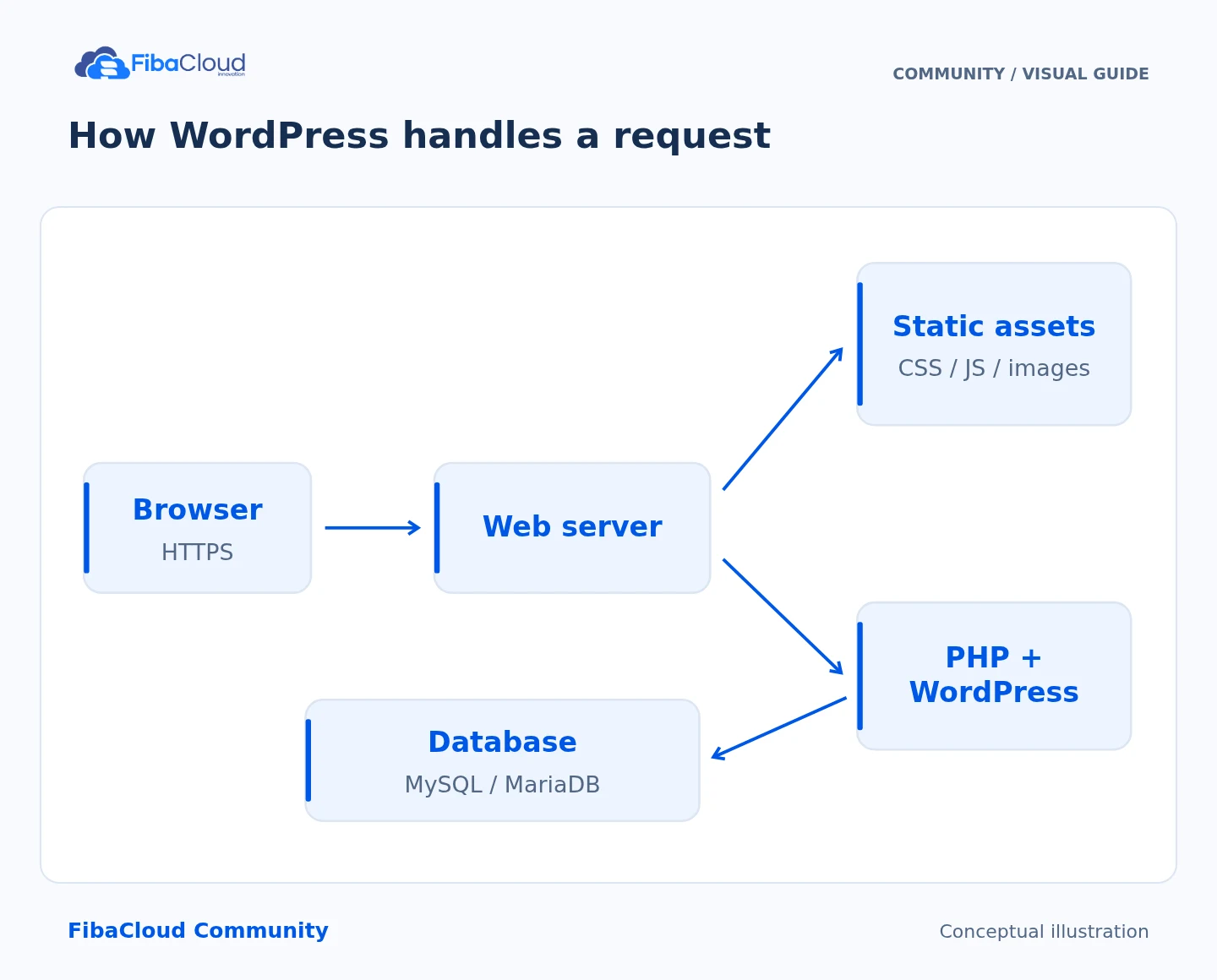
WordPress is a flexible and user-friendly content management system that powers millions of websites worldwide. Combined with FibaCloud’s high-performance VPS servers, your website will have an unrivaled advantage in terms of speed, security, and scalability.

Let’s get started!

Step 1: Prepare Your VPS Server

Log into your FibaCloud control panel and create a new cloud server. I recommend choosing Ubuntu as the operating system because it is one of the most compatible options with WordPress. Adjust your server resources (CPU, RAM, storage) according to the expected traffic of your website. Thanks to FibaCloud’s scalable infrastructure, you can easily increase your resources as your needs change.

Step 2: Connect to the Server via SSH

We will use SSH (Secure Shell) to securely connect to your VPS server. Use an SSH client like PuTTY (for Windows) or Terminal (for Mac/Linux) to connect using your server IP address and user credentials.

Step 3: Install LAMP Stack

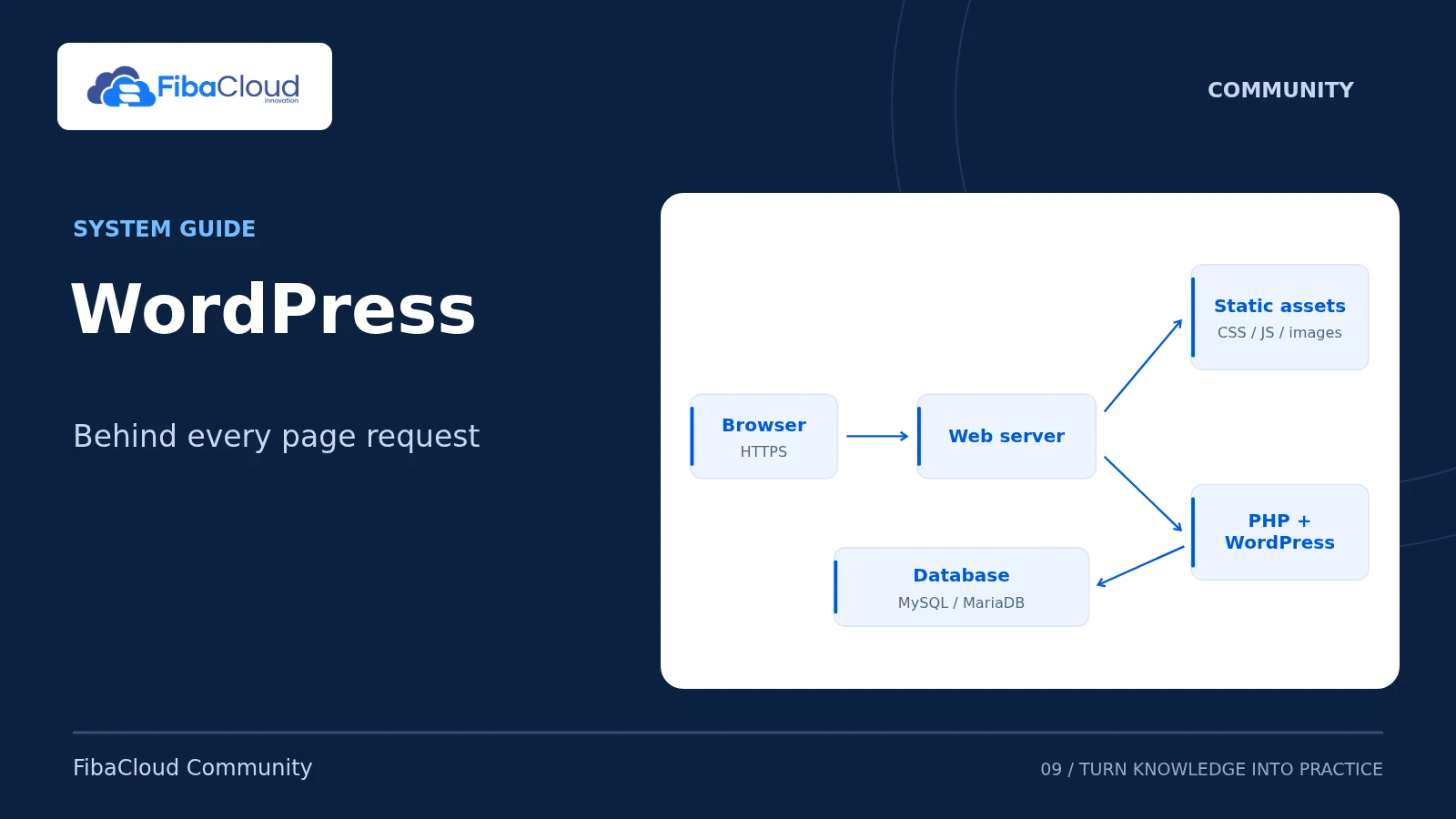
WordPress requires the LAMP (Linux, Apache, MySQL, PHP) stack to operate. Use the following commands to install these components on your server:

				
					sudo apt update
sudo apt install -y apache2 mysql-server php libapache2-mod-php php-mysql


Step 4: Create MySQL Database

WordPress uses a MySQL database to store your content and settings. Create your database with the following commands:

				
					sudo mysql -u root -p


Enter your MySQL root password and then;

				
					CREATE DATABASE wordpress_db;
CREATE USER 'wordpress_user'@'localhost' IDENTIFIED BY 'your_password';
GRANT ALL PRIVILEGES ON wordpress_db.* TO 'wordpress_user'@'localhost';
FLUSH PRIVILEGES;
EXIT;


Step 5: Download and Configure WordPress

Download the latest version of WordPress from the official website and transfer the files to the web root directory on your server (usually /var/www/html).

				
					cd /var/www/html
sudo wget https://wordpress.org/latest.tar.gz
sudo tar -xzvf latest.tar.gz
sudo chown -R www-data:www-data wordpress
				
			
Then, rename the wp-config-sample.php file to wp-config.php and edit it with your database information:
				
					sudo mv wordpress/wp-config-sample.php wordpress/wp-config.php
sudo nano wordpress/wp-config.php


Step 6: Create Apache Virtual Host

By creating an Apache virtual host for WordPress, we will ensure that your website works correctly with your domain name. Create a new virtual host file with the following command:

				
					sudo nano /etc/apache2/sites-available/wordpress.conf


Add the following content to this file (replace your_domain_name with your own domain name):

				
					<VirtualHost *:80>
    ServerName domain_name
    ServerAlias www.domain_name
    DocumentRoot /var/www/html/wordpress
    ErrorLog ${APACHE_LOG_DIR}/error.log
    CustomLog ${APACHE_LOG_DIR}/access.log combined
</VirtualHost>


Enable the virtual server and restart Apache.

				
					sudo a2ensite wordpress.conf
sudo a2dissite 000-default.conf
sudo systemctl restart apache2


Step 7: Complete the WordPress Installation Wizard

You can now start the WordPress installation wizard by going to http://your_domain in your web browser. Enter your database information, set your site title, and create an admin user account.

Step 8: (Optional) Install SSL Certificate

To enhance your website’s security, you can use Let’s Encrypt SSL certificates provided by FibaCloud. Using the Certbot tool, you can easily obtain an SSL certificate and set up automatic renewal.

Frequently Asked Questions (FAQ)

How long does it take to install WordPress?

Thanks to FibaCloud VPS servers, the WordPress installation typically completes within 15-20 minutes.

Which FibaCloud VPS plan should I choose for WordPress?

You can choose among FibaCloud’s different VPS plans based on your website’s expected traffic and resource needs. For starters, the “Shared 1” plan with 1 GB RAM and 25 GB SSD storage will be sufficient.

Can I get help from the FibaCloud technical support team?

Yes, FibaCloud’s 24/7 support team is ready to assist you with WordPress installation and other technical issues.

Leave a Reply

Your email address will not be published. Required fields are marked *